mIRC Help
At first glance IRC appears complicated but once you get started its pretty straightforward
Step 1 - Getting the tools
You will need an IRC (Internet Relay Chat) client. There are a number of IRC clients about on the net. The most popular is mIRC.
Download it from http://www.mirc.com/ and install
it.
Step 2 - Getting Connected (Basic)
Next you need to setup your copy of mIRC to connect to the server we use and
our specific {SAS} channel:
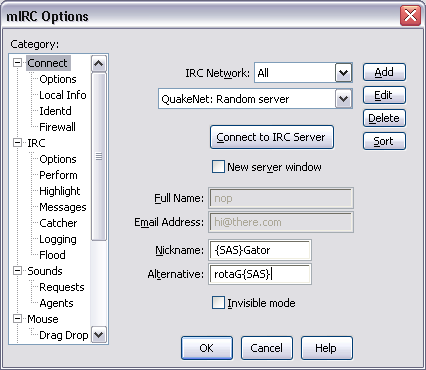
- File -> Options -> Connect - Select "Quakenet:
Random EU Server" or similar (make sure its quakenet of some flavour) from the
drop down server list, fill in your nickname (make up a fake name and email
address for the other fields). - Then click "Connect to IRC server", mIRC will
now connect to the Quakenet irc network, after a few messages in the status
window you will be connected, but the fun doesn't end there.... Click in the
small text area of the status window (at the bottom) and type the command
/j #db4d.
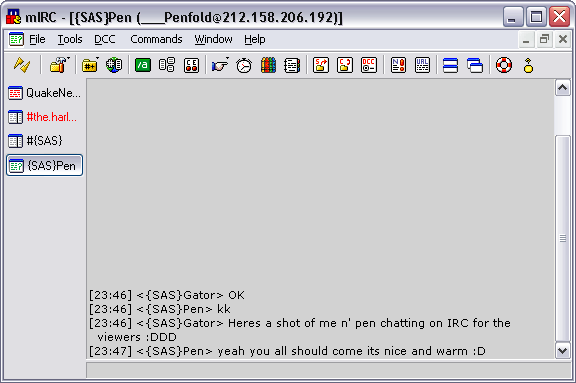
- Now you should be seeing something like the first image, you will have a
status window (don't close this or it will disconnect you) and you will have a
window representing the db4d channel. Next lets set up the client so that it
connects like this on startup, and reconnects if you get disconnected from the
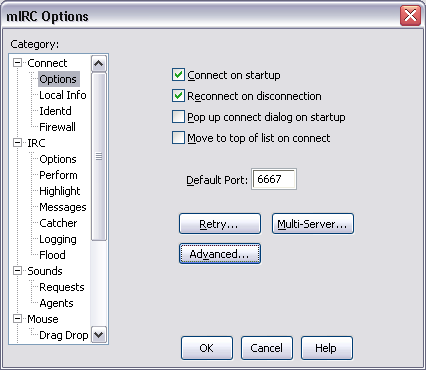
Internet for some reason: File -> Options -> Connect ->
Options. Tick the "Connect on startup" and "Reconnect on
disconnection" boxes, then click ok. (see the image below)
- Next up we need to make sure the client connects you to the #db4d channel
on startup, for this we will be using the "Perform" features of mIRC,
basically you can enter a list of commands that mIRC will 'perform' everytime
you connect to a server:
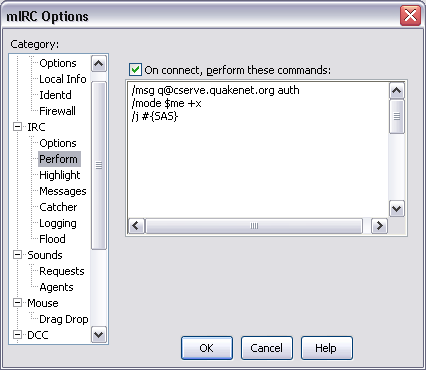
For now, all you need do is open the perform
options: File -> Options -> IRC -> Perform (Version
5.x) or File -> Options -> Connect ->
Perform(button) (Version 6.x). What you are looking for is a little
text area like the one in the image below (substitute #db4d wherever it says #{SAS}) :
When you are there you need to enable perform functionality:
So Tick the box that says "On connect, perform these commands" (Version 5.x)
or use the drop down menu to select the "All Servers" (Version 6.x).
With
this done, type into the perform box: /j #db4d and click OK.
In summary; Whenever you start mIRC it should now connect you to the
quakenet server, and join the =DB4D= channel automatically, it should also
reconnect on disconnection.
Step 3 - Saying Hello to Q!
Q is the Quakenet Bot. Simply put, Q manages usernames and passwords for
users of Quakenet and although it is not mandatory to have a Q account when
using Quakenet, it does provide a large host of features that would otherwise be
unavailable to you, so when you are familiar with using mIRC (chatting and so
forth) think about following the next section of the guide, to get yourself a Q
account (they're free and very useful).
Ok you've sold me on Q, how do I get this account?
An excellent question, heres how to do it: Before you start, you will need: A
valid email address (that you can access)...and a few minutes to spare.
- Type into the status window, or any other window, the command: /msg Q
hello user@emailaddress.com user@emailaddress.com.
No thats not a Typo,
you really need to type your email address twice. Q should respond by saying
something like "Thanks for registering, a confirmation email has been sent to
user@emailaddress.com with your username and password etc etc".
(Note:
whatever nickname you were using whilst typing this command will now be your Q
username, so make it something memorable and hopefully unique). If you get an
error (and Q will let you know if you do) simply type the command again with
the correct parrameters.
- Check your email, confirmation normally comes through quite quickly, and
check for the Username and Password confirmation in the mail.
- Next we need to Authenticate with Q, simply type the command: /msg
Q@cserve.quakenet.org auth *username* *password* (without the *'s) and Q
should tell you that you are now authed successfully.
- Now Q knows who you are, we can easily give you operator status in the
=DB4D= clan channel and you can use the other Q commands, for a list type the
command: /msg Q showcommands. Most will mean very little to you at the
momment, but don't worry the more you use IRC the clearer it all will become.
- To save you typing the auth command everytime you login to mIRC, follow
the instructions in Step 2 to add the following commands to
your "Perform" list: /msg Q@cserve.quakenet.org auth *username*
*password* and /mode $me +x. The first command as you know will
authenticate you with Q everytime you connect, the second allows you to use
the Quakenet VHOST service, this is a service that hides your IP address from
other IRC users and is highly recommended.
In conclusion
If you have any problems with anything in this guide, please feel free to
contact me, either by PM in the forums or on MSN
- MSN - chequeredhat@hotmail.com
Good luck, and see you on the
server!
RETURN TO DEATH B4 DISHONOUR MAIN PAGE